
Poise: Percussion Sampler
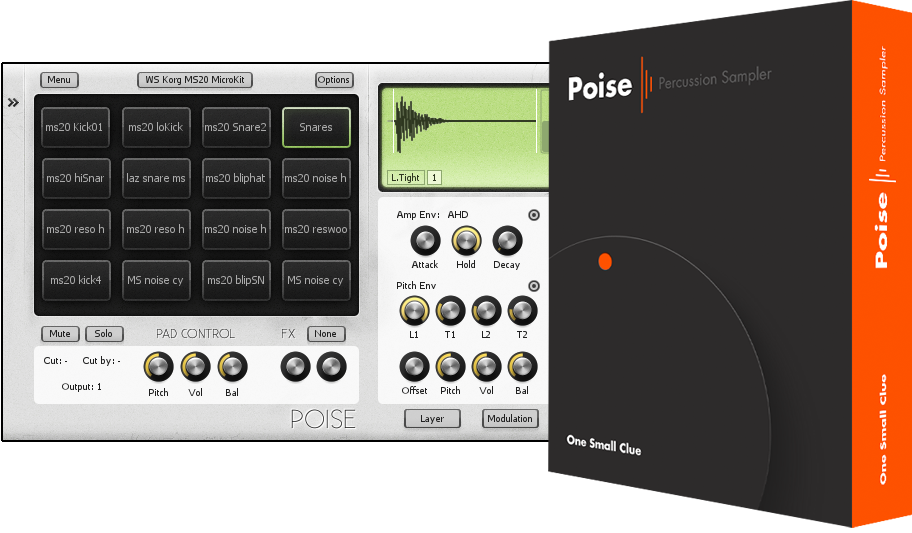
Poise makes working with drum samples quick and effortless, allowing you to focus on creating music.
Poise features 16 drum pads, with 8 sampler layers per pad. Sample layers have parameters for pitch, volume and balance, as well as amplitude and pitch envelopes. There are several sample switching types including random, velocity and round-robin.
Poise was designed to appear simple at first glance. Poke below the surface and you'll find ways to customise Poise to fit your context.
Features
- 16 drum pads
- 8 samples per drum pad with various sample switching modes (round-robin, random, layered and velocity split)
- Sample browser with preview
- Amplitude and pitch envelopes for samples
- 8,16,24 and 32 bit WAV, AIF and SND file format support
- Drag and drop sample loading
Review
Grace: Sampler
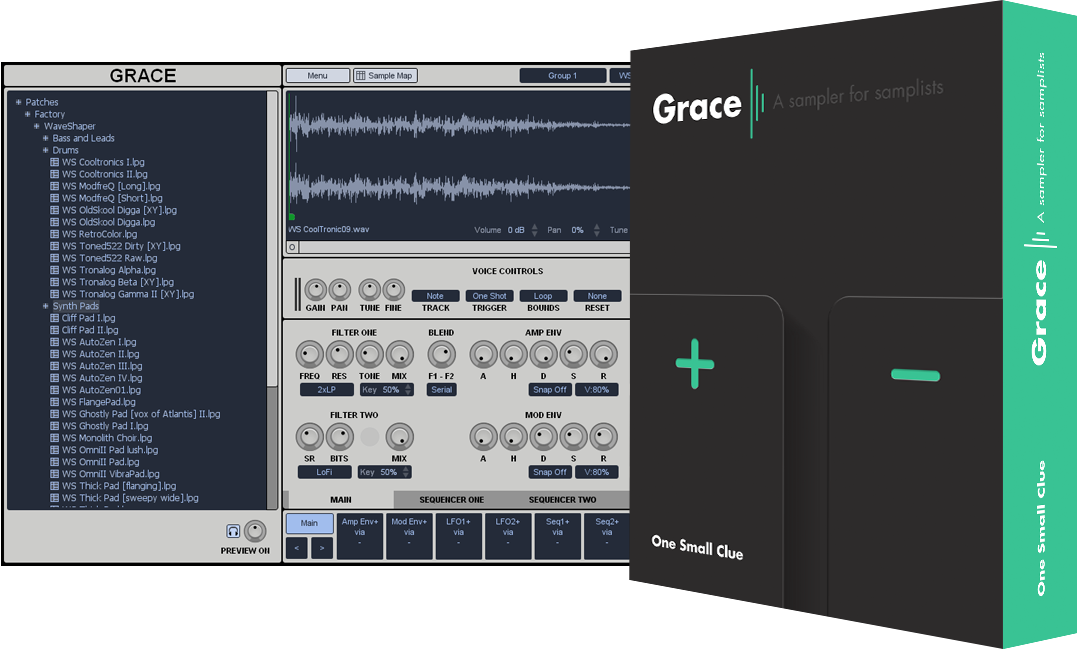
Grace is a sampler designed for people who make their own patches.
Features
- 2 filters per voice (LP, BP, HP, comb, lofi & ring modulation)
- 2 x AHDSR envelopes
- 2 x LFOs
- 2 x step sequencers
- 4 x XY control pads
- WAV, AIF and SND formats support
- SFZ patch import
- Drag and drop sample loading from some DAWs
- Browser with sample preview
- Patch import & export support from Chicken Systems
Included Sample Content
The first patch library for Grace comes from WaveShaper and contains 54 original patches rich with vintage synth charactor. All patches use samples captured from a collection of analog synths and drum machines.
Review
Grace is a stable and compact sampler with a great streamlined workflow and a strong feature set.